How to apply for a service

How to apply for a service

How to apply for a service

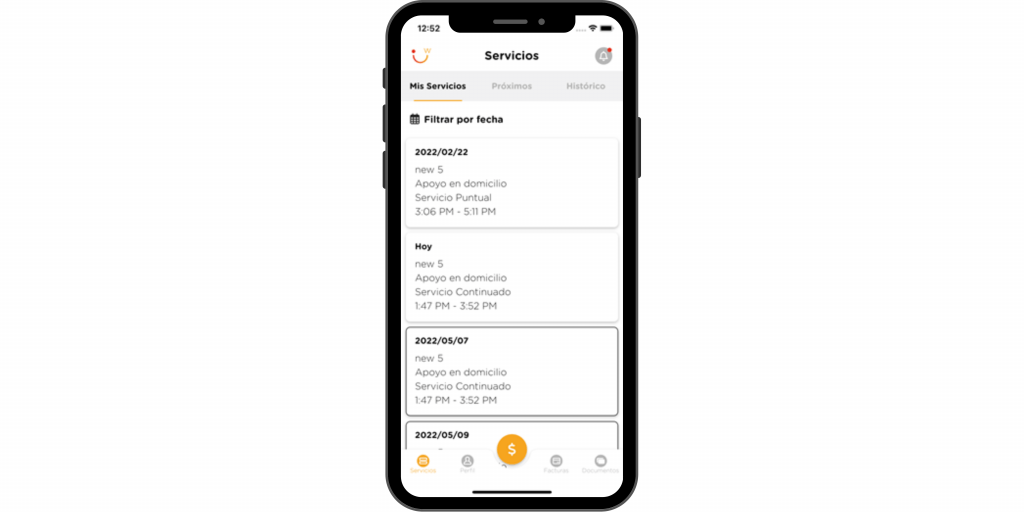
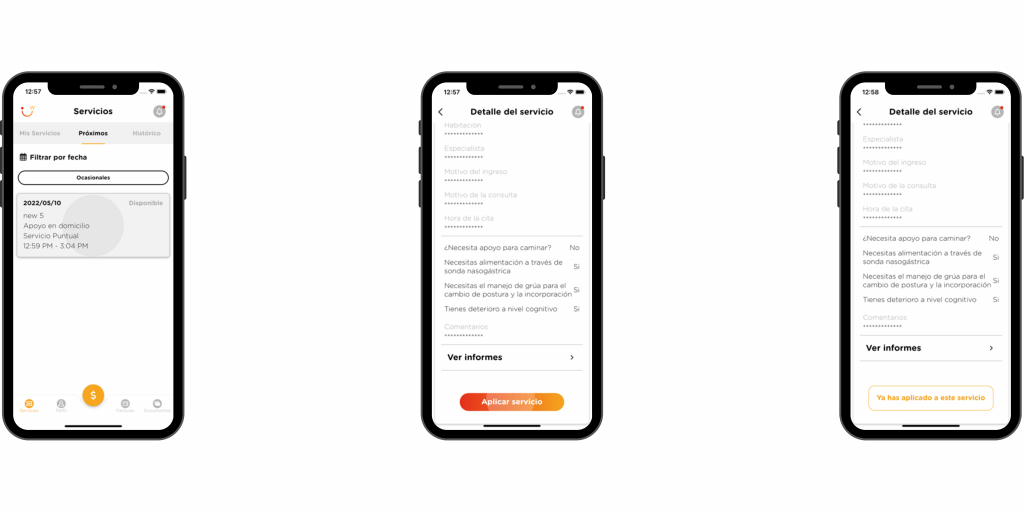
  • Access “Services” at the bottom of the screen on the navigation bar.

  • Click on “Upcoming” to see the list of available services.

  • Choose the service you are interested in and click on it.

  • Scroll to the bottom of the screen and tap the “Apply Service” button. Once you have applied, the message “You have already applied for this service” will appear.

  • You will receive a notification in case the client selects you for the service for which you have applied.

NOTE: to apply for a service you will have to have completed your profile and the rates. You can filter by the date that suits you best or filter by continuous or occasional services.

Go to:

How to view available services

How to view available services

How to view available services​

  • Click on “Services” in the navigation bar at the bottom of the screen.

  • Click on the “Upcoming” tab. Here you can see a list of all the available services for which you can apply.

Go to:

How to complete profile as a professional

How to complete caregiver profile

How to complete caregiver profile

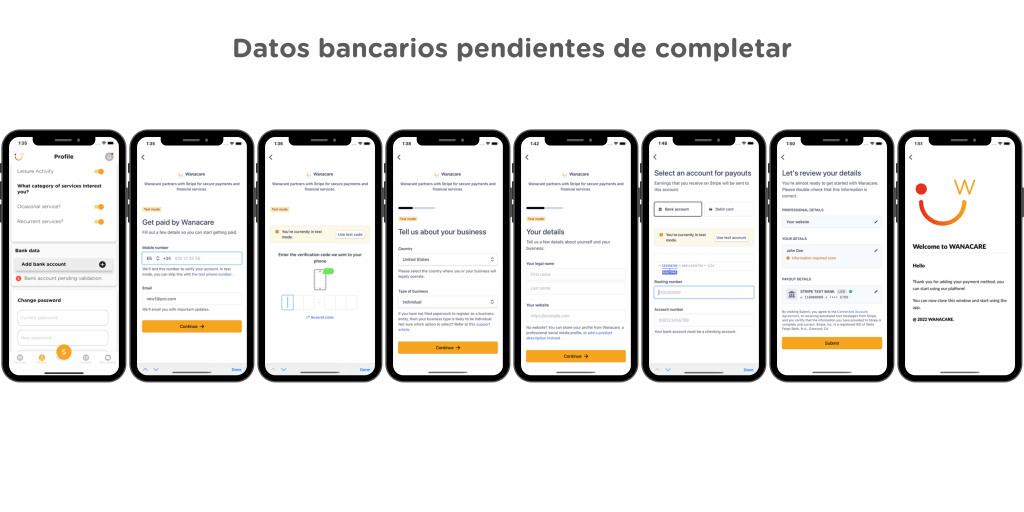
  • The “Profile” button is located at the bottom of the screen.

  • Go to your profile, click on the edit button and fill in the fields that are empty.

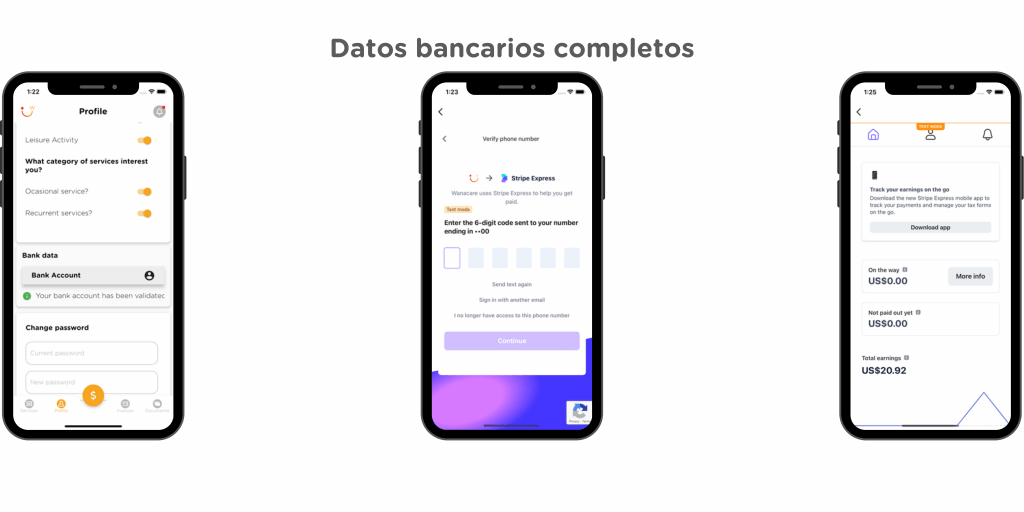
  • Click on “Add bank account” to configure your payment method. This will redirect you to Stripe where you can safely add your bank account.

NOTE: You will know if your account is validated or not, through the text that appears below the button.

Go to:

How to mark rates as a professional

How to mark rates

How to mark rates

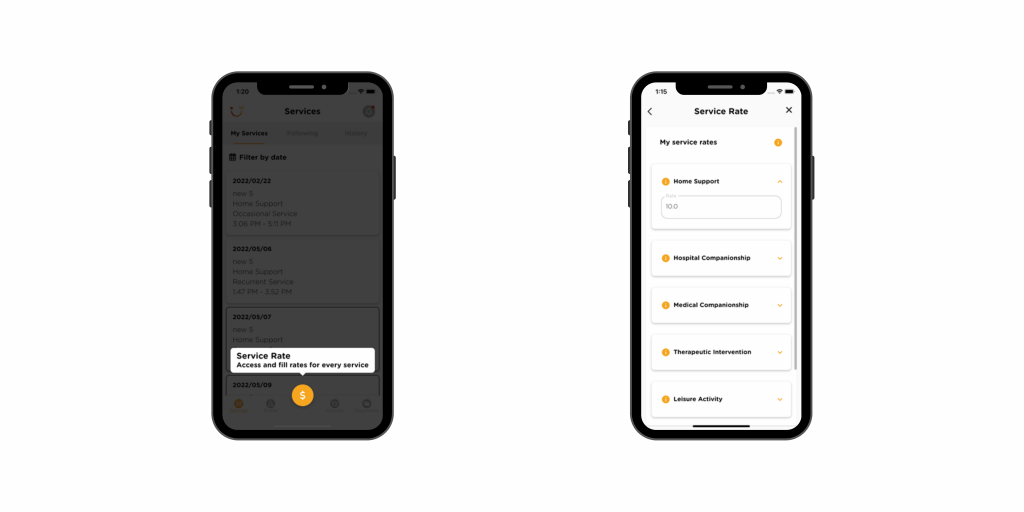
  • Click on the central button with the “$” symbol. Here you can see all the types of services available.

  • Press the button in the upper right corner to edit your rates.

NOTE: You will need to enter your minimum rate on all types of service in order to complete this section.

Go to:

How to login as a professional

How to login as a professional

How to login as a professional​

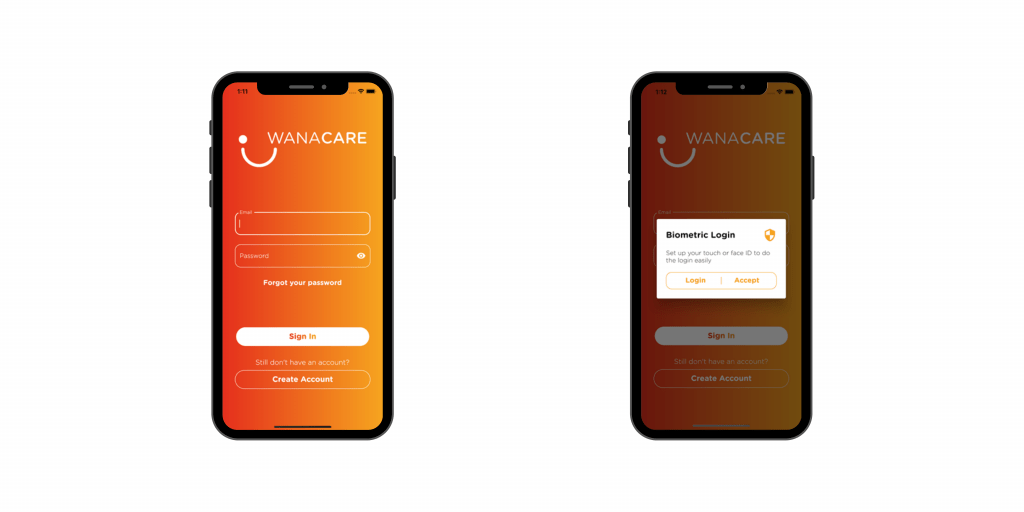
Once you have received our email validating your account, access the APP with your credentials: email and password.

OPTIONAL: you can validate your username and password with the Touch ID or Face ID of your mobile.

Go to

 
  • How to apply to work
  • How to register
  • How to login
  • How to mark rates
  • How to complete profile
  • How to view available services
  • How to apply for a service
  • How to view assigned services
  • How to start a service
  • How to end a service
  • How to view completed services
  • How to prepare a report
  • How to view and update documents
  • How to see my payments

How to register​ as a professional

How to register as a professional

How to register as a professional​

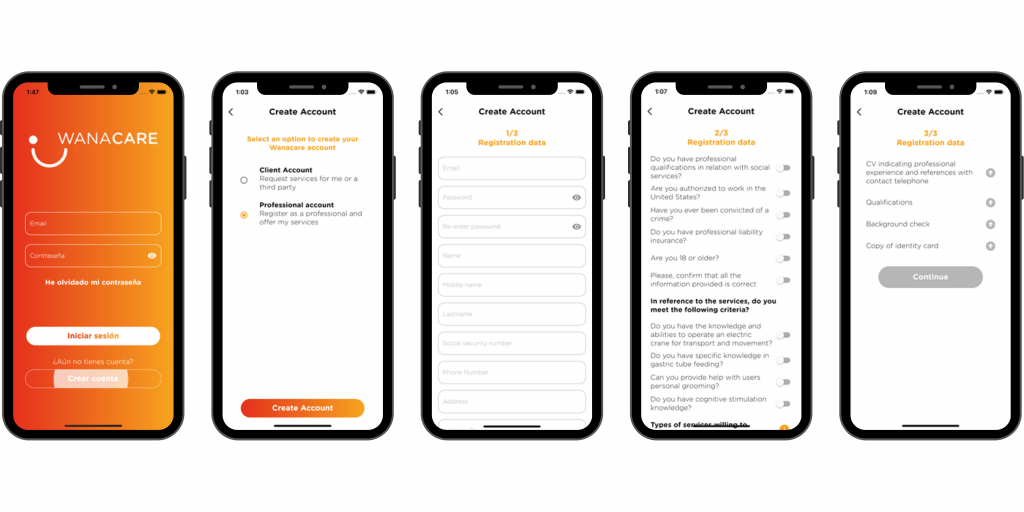
  • Download the app available for iOS devices and Android devices.

  • On the home screen, click the “Create Account” button and choose “Professional account”.

  • Complete the form with your personal data and accept the terms and conditions.

  • Answer the questionnaire.

  • Upload the necessary documents to complete your registration.

  • Go to your inbox and confirm your email account.

When your registration is verified, we will send you an email to tell you that you can now access the APP with your credentials.

Go to:

How to remove a professional from the service

How to remove a professional from the service

How to remove a professional from the service

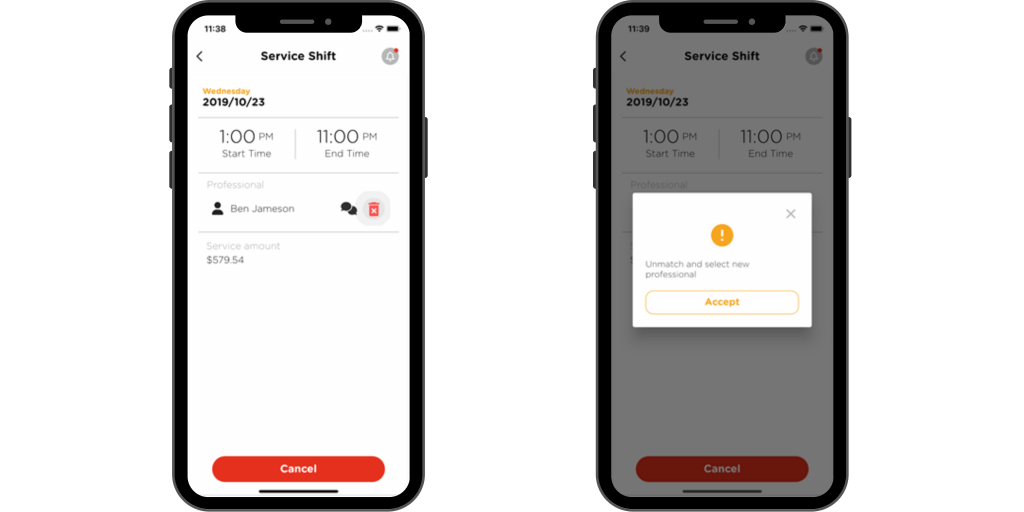
If you need it, you can change the professional you have chosen for a continued service and choose another. Within the detail of the service, click on the name of the professional. To its right, you will see a trash can icon. Click on it to eliminate the professional and start a new process of choosing the professional.

Go to:

How to cancel a service​

How to cancel a service

How to cancel a service

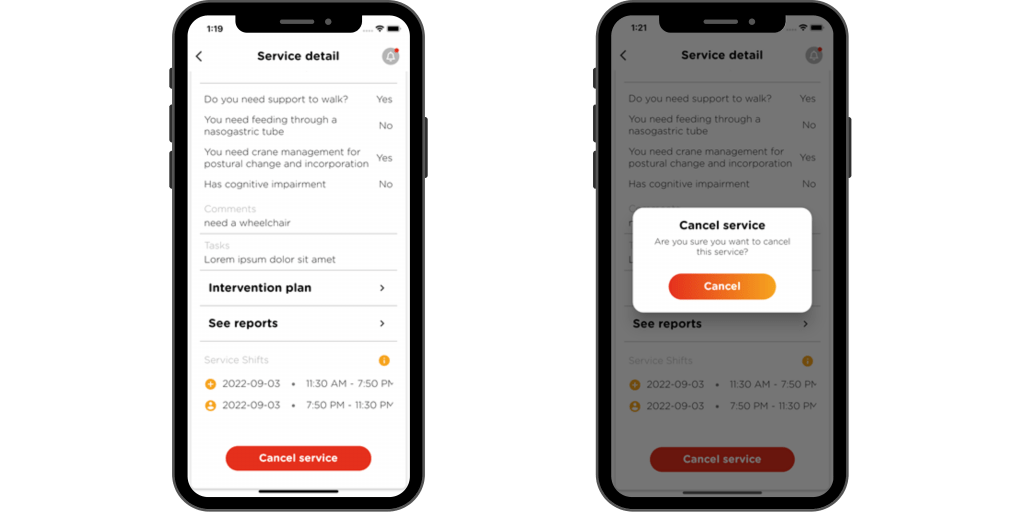
You can cancel a service as long as the service has not started or has ended.

  • Click on “Services”

  • Select the service you want to cancel and enter its details.

  • Swipe down to the bottom of the screen, where you’ll find the cancel service button.

NOTE: Depending on the pending time until the start of the service, charges may be applied for its cancellation.

Go to:

How to see my invoices as a client

How to see my invoices

How to see my invoices

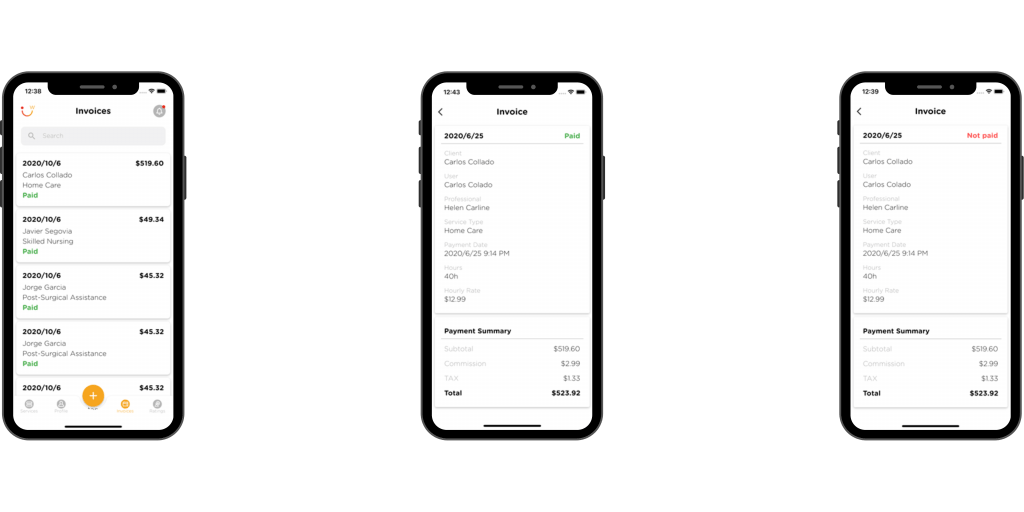
  • Click “Invoices” at the bottom of the screen.

  • There you can see the invoices of all the services you have received.

  • Click on one of them to see the details of the invoice.

Go to: