Skip to content
  • Professionals
  • Agencies
  • Join Wanacare
  • Our business
    • Our offerings
    • Safety
    • Privacy Policy
  • Help
  • Professionals
  • Agencies
  • Join Wanacare
  • Our business
    • Our offerings
    • Safety
    • Privacy Policy
  • Help

Profile and account

How to configure the phone software

by General

How to configure the phone software

How to configure the phone software

  • On Android devices: the app will be available for devices running android version 5.0 or higher.

  • On iOS devices: the app will be available for devices running iOS 10.0 or higher.

Go to:

  • How to request a service
  • How to apply to work
  • How to register an agency
  • Hoy to register a professional who belongs to an agency
  • How to create a company account to request  services
  • How to see notifications or conversations
  • How to update the APP
  • How to change the language of the APP
  • How to configure the phone software
Categories Profile and account

How to change the language of the APP

by General

How to change the language of the APP

How to change the language of the APP

The language of the application depends on the language of your mobile device:

iOS:

  • On your mobile device, go to “Settings”.

  • Click on “General”.

  • Select “Language & Region” and then click “Device Language.”

  • Select the language (English or Spanish) and confirm the selection.

Android:

  • On your device, go to “Settings”.

  • Click “System,” then “Languages ​​& Input,” then “Languages.” If you can’t find “System,” under “Personal,” click “Languages ​​& Input,” then “Languages.”

  • Click “Add Language”, choose English or Spanish and drag it to the top of the list.

Go to:

  • How to request a service
  • How to apply to work
  • How to register an agency
  • Hoy to register a professional who belongs to an agency
  • How to create a company account to request  services
  • How to see notifications or conversations
  • How to update the APP
  • How to change the language of the APP
  • How to configure the phone software
Categories Profile and account

How to update the APP

by General

How to update the APP

How to update the APP

Go to the App Store if you have an iOS device or Play Store if you have an Android device. If an update is available, you’ll see a button to update the app.

Go to:

  • How to request a service
  • How to apply to work
  • How to register an agency
  • Hoy to register a professional who belongs to an agency
  • How to create a company account to request  services
  • How to see notifications or conversations
  • How to update the APP
  • How to change the language of the APP
  • How to configure the phone software
Categories Profile and account

How to view notifications or conversations

by General

How to see notifications or conversations

How to see notifications or conversations

Click the bell button in the top right to access notifications and conversations. This button appears on all navigation menu screens.

  • Notifications: you will see a list of notifications on which you can click to see more detailed information. You can filter by the name of the notification.

  • Conversations: you will see a list of conversations in which you can click to enter and chat with the other person. You can filter by the person’s name.

Go to:

  • How to request a service
  • How to apply to work
  • How to register an agency
  • Hoy to register a professional who belongs to an agency
  • How to create a company account to request  services
  • How to see notifications or conversations
  • How to update the APP
  • How to change the language of the APP
  • How to configure the phone software
Categories Profile and account

How to create a company account to request services​

by General
Categories Profile and account

How to register a professional who belongs to an agency​

by General

How to register a professional that belongs to an agency

How to register a professional that belongs to an agency

You can register as many professionals as you want in your agency. Professionals will only be able to register with your agency when you have created your agency account, have set your rates and have an associated account number to be able to charge for services.

There are two options to register a professional who belongs to an agency:

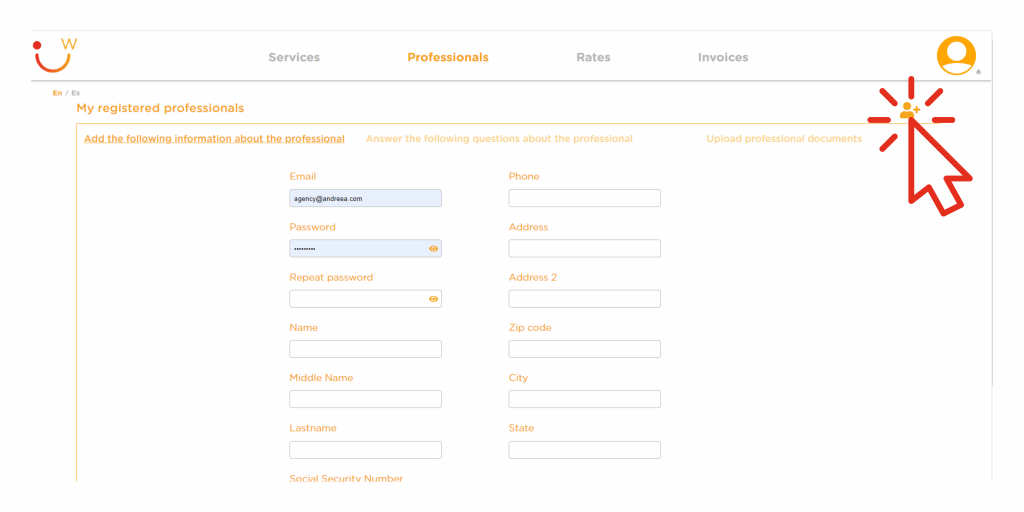
  1. Registering through the agency panel: access your private panel through the website https://dashboard.wanacare.com/login. In the Professionals section, click on the New professional icon, fill in the data, answer the questionnaire and attach the professional’s documentation.

  2. Registering through the app available for iOS devices and for Android devices. On the registration screen, the professional must mark the option “I belong to an agency” and enter the email with which your agency is registered.

Go to:

  • How to register an agency
  • How to login
  • How to mark rates
  • How to register professionals
  • How to charge for my services
  • How to see my services
  • How to see my invoices
Categories Profile and account

How to create an account and apply to work​

by General
Categories Profile and account

How to create an account and request a service

by General

How to register as a client and request a service

How to register as a client and request a service

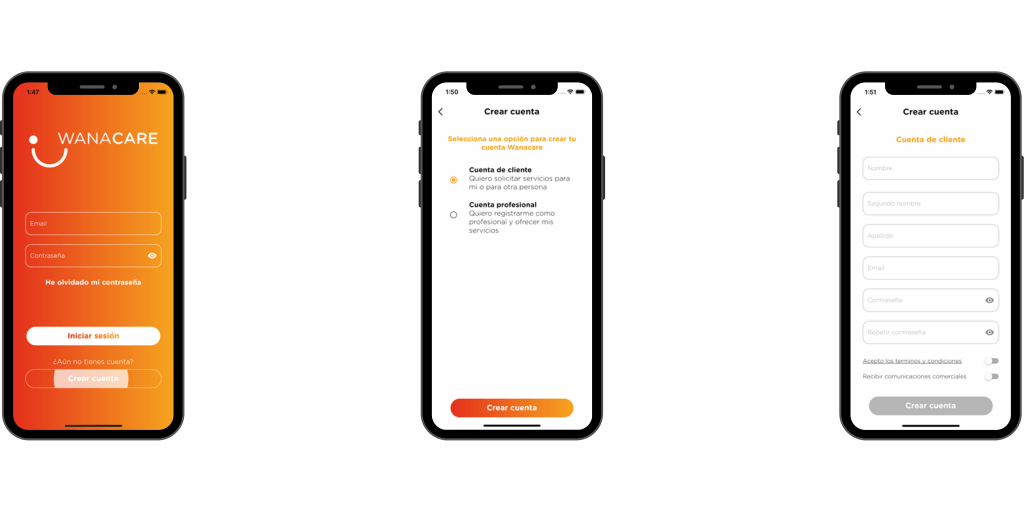
  • Download the app on Apple Store or Play Store

  • Click the “Create Account” button.

  • Choose the option “Customer account”

  • Fill in the form, accept the terms and conditions and press “Create account”.

  • Once the account is created, log in with your credentials.

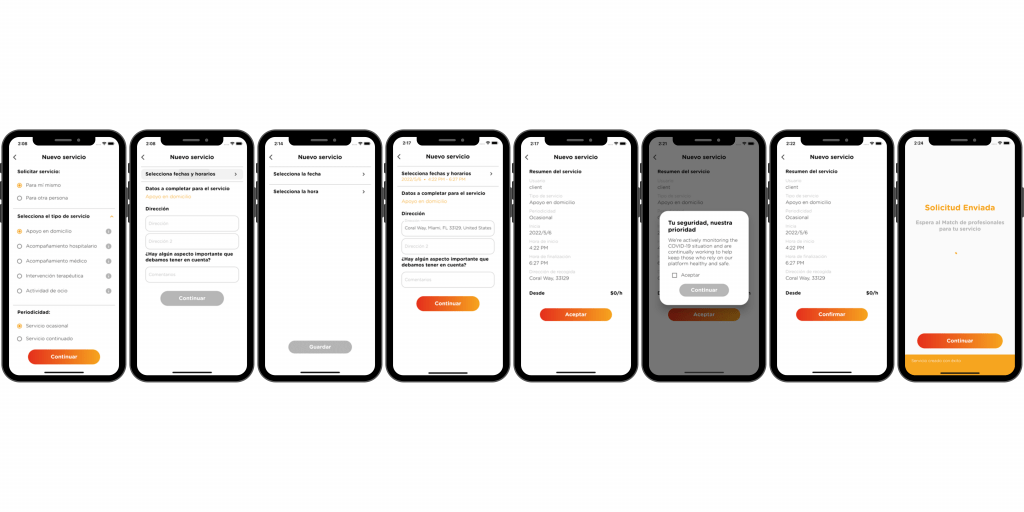
Now, you can request a service by pressing the central “+” button:

  • Choose who the service is for: for you or for someone else. If it’s for someone else, choose the user or add a new user.

  • Select the type of service you need.

  • Indicates whether it is a one-off service (for one day) or a continuous service (a service that is repeated over several days.

  • Select the date and time of the service or services.

  • Indicates the address of the service.

  • Next, you will see the summary of the service you have requested. If the information is correct, click “OK”. If you want to correct any data, go back to the previous screens and make the necessary changes.

  • You will receive a notification when there are professionals interested in your service.

Go to:

  • How to register
  • How to login
  • How to complete profile
  • How to add users
  • How to request a service
  • How to see my services
  • How to see available professionals
  • How to choose a profesional
  • How to value a professional
  • How payments are made
  • How to see my invoices
  • How to cancel a service
  • How to remove a professional from the service
Categories Profile and account

How to apply to work​

by General

How apply to work

How to apply to work

  • Create an account through the app, available for iOS devices and Android devices.

  • Enter your data, answer the questionnaire and upload the necessary documents.

  • Go to your inbox and confirm your email account.

  • When your registration is verified, we will send you an email so that you can access the APP with your credentials.

  • Sign in and set up your account: profile, bank account and hourly rates.

Go to:

  • How yo apply to work
  • How to register
  • How to login
  • How to mark rates
  • How to complete profile
  • How to see available services
  • How to apply for a service
  • How to view assigned services
  • How to start a service
  • How to end a service
  • How to view completed services
  • How to prepare a report
  • How to view and update documents
  • How to see my payments
Categories Profile and account

How to register an agency

by General

How to register as an agency

How to register as an agency

  1. Create your agency account on https://dashboard.wanacare.com/login/register/agency.
  2. Sign in with the credentials you just created.
  3. Set up your account:
  • Mark your hourly rates
  • Set up your account number
  • Register your professionals

Go to:

  • How to register an agency
  • How to login
  • How to mark rates
  • How to register professionals
  • How to charge for my services
  • How to see my services
  • How to see my invoices
Categories Profile and account

LA PLATAFORMA DIGITAL DEL HOME CARE Y HOME HEALTH CARE

COMIENZA AHORA
PRODUCTO
Profesionales
Empresas
Seguridad
CONÓCENOS
Blog
Términos y condiciones
ZONAS
Key Biscayne
Brickell Home Care
Aventura Home Care
Coral Gables Home Care
+ZONAS
Miami Lakes Home Care
Bal Harbour Home Care
Doral Home Care
Key Biscayne Home Care
GIG ECONOMY
¿Qué es la economía GIG?
Facebook Youtube Instagram